Create your own personal page with GitLab and Hugo.
Links:
Goal: Create personal static page with necessary information about you and your projects.
Steps:
Create Hugo project
Install Hugo
Use one of follow command to install hugo:
Mac OS
$ brew install hugo
Windows
$ choco install hugo -confirm
Linux
$ snap install hugo
You cas see all the necessary information about the installation of Hugo on https://gohugo.io/getting-started/installing/.
Verify Hugo installation with command:
$ hugo version
This command should print something like that:
Hugo Static Site Generator v0.67.0/extended darwin/amd64 BuildDate: unknown
Create project
Open your local directory in the terminal where you want to save the Hugo project and create project with command:
$ hugo new site personal

Congratulations! Your new Hugo site is created in /Users/max/project/personal.

Just a few more steps and you're ready to go:

1. Download a theme into the same-named folder.
   Choose a theme from https://themes.gohugo.io/ or
   create your own with the "hugo new theme <THEMENAME>" command.
2. Perhaps you want to add some content. You can add single files
   with "hugo new <SECTIONNAME>/<FILENAME>.<FORMAT>".
3. Start the built-in live server via "hugo server".

Visit https://gohugo.io/ for quickstart guide and full documentation.
Where personal is the name of your project.
We need any theme to be installed, so let’s install theme beautifulhugo:
$ cd personal
$ git init
$ mkdir -p themes
$ git submodule add https://github.com/halogenica/beautifulhugo.git themes/beautifulhugo
Configure Hugo to user the beautifulhugo theme, open config.toml and add following line:
theme = "beautifulhugo"
Your config.toml file should be like that:
baseURL = "http://example.org/"
languageCode = "en"
title = "My New Hugo Site"
theme = "beautifulhugo"
Start the local server in the project folder:
$ hugo server

Watching for changes in /Users/max/{archetypes,content,data,layouts,static,themes}
Watching for config changes in /Users/max/config.toml
Environment: "development"
Serving pages from memory
Running in Fast Render Mode. For full rebuilds on change: hugo server --disableFastRender
Web Server is available at http://localhost:1313/ (bind address 127.0.0.1)
Press Ctrl+C to stop
You can open in a browser http://localhost:1313/ and you will see your generated static site:
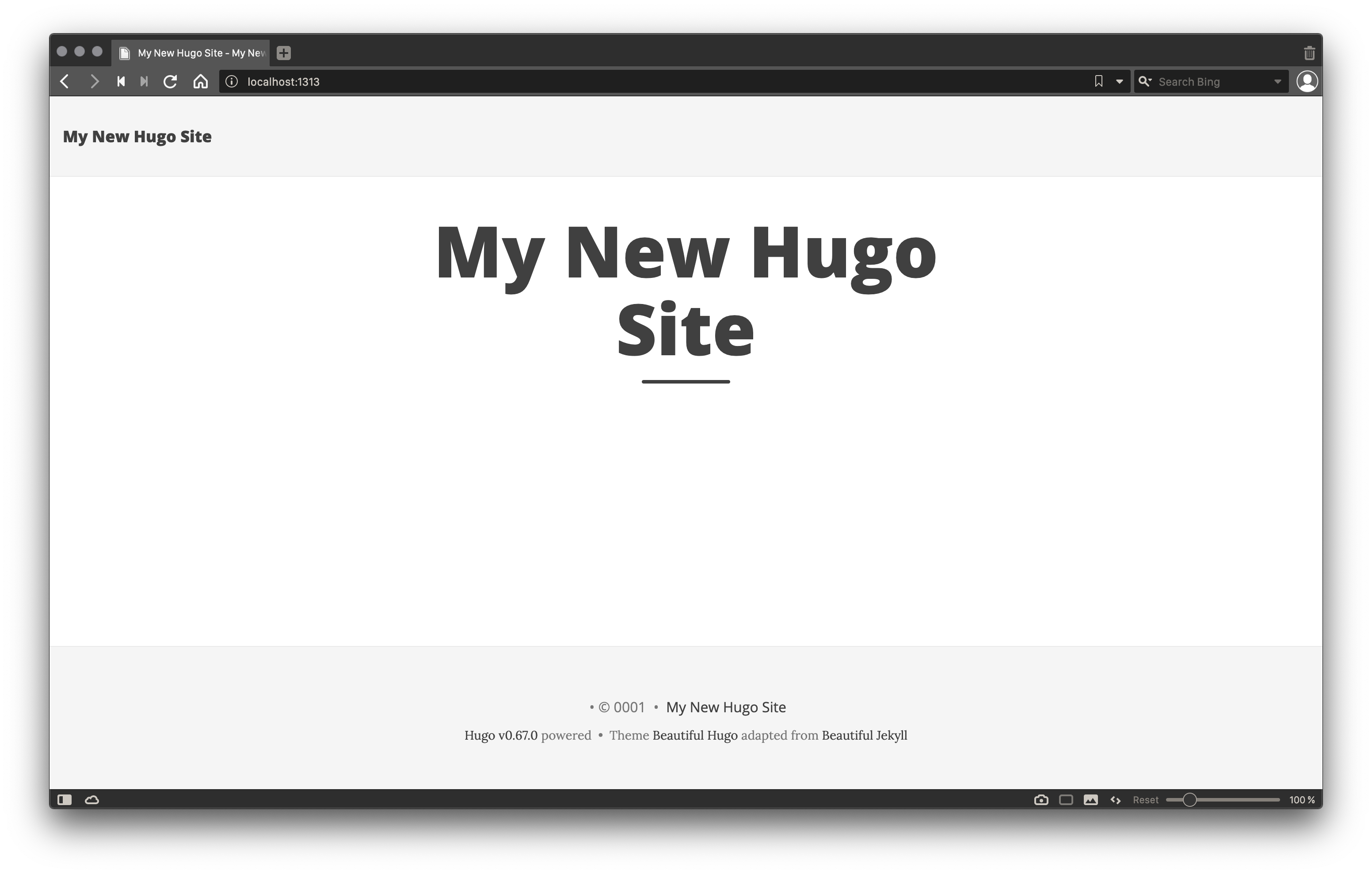
The world ready to see your page now!
Configure GitLab CI
Create file .gitlab-ci.yml in project directory with following content:
image: registry.gitlab.com/pages/hugo:latest

variables:
  GIT_SUBMODULE_STRATEGY: recursive

pages:
  script:
    - hugo
  artifacts:
    paths:
      - public
  only:
    - master
In the file defined one job called pages. The pages job run the script hugo, script generate all content of your site in
directory public. Artifact path point GitLab CI to using public directory folder as context of your public page.
Push project to GitLab
Register or login
Go to https://gitlab.com/users/sign_up to register a new account or login in to https://gitlab.com/users/sign_in if you already have a gitlab account.
Create a new project
Create a new project, for example personal:
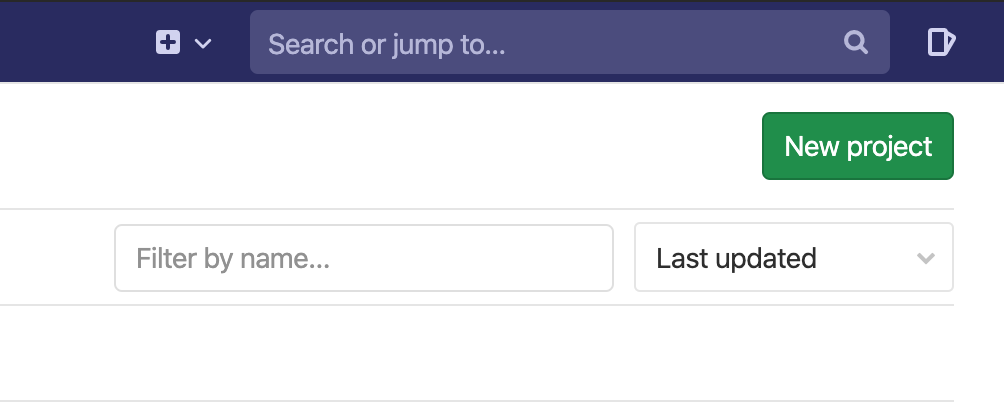
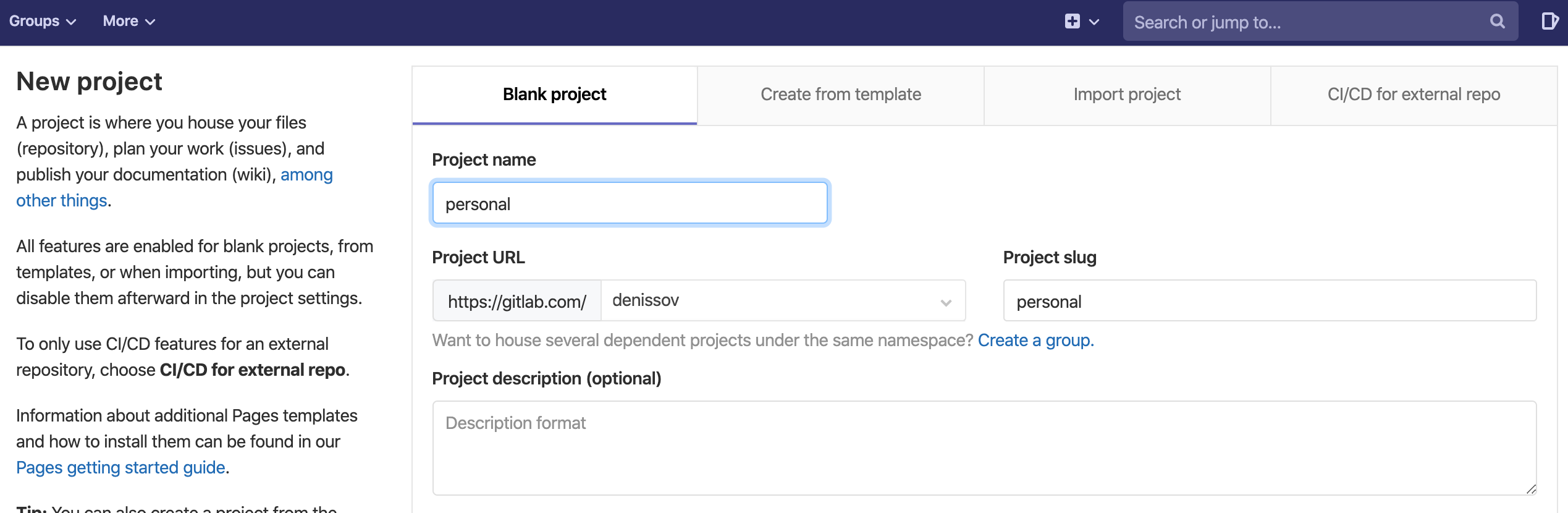
Push local project to GitLab.com
Go to your GitLab project page https://gitlab.com/{your_account_name}/personal
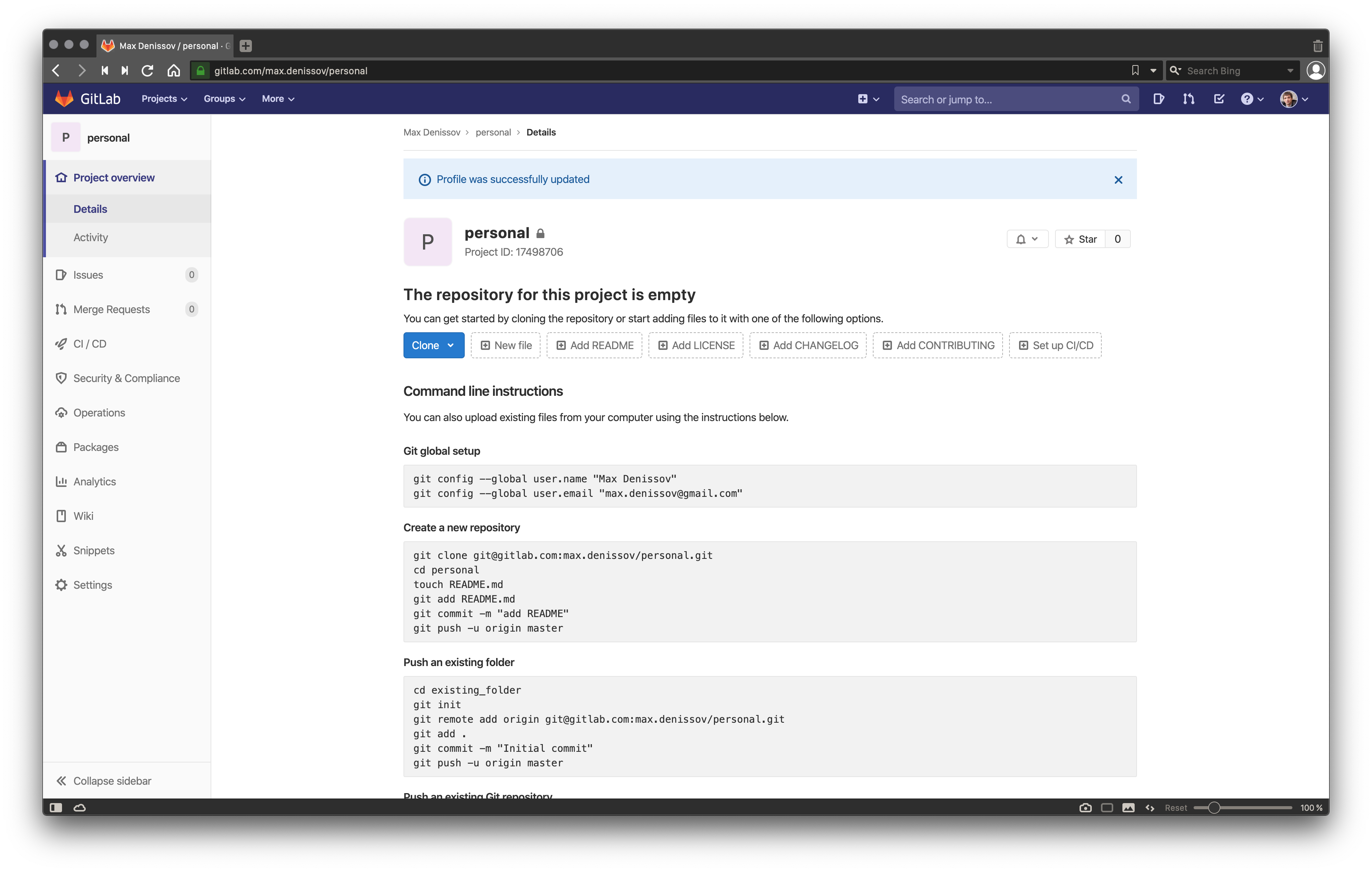
Use section Push an existing folder for pushing your local project to GitLab.com. We already executed command
git init before, so you may skip this command.
$ git remote add origin git@gitlab.com:max.denissov/personal.git
$ git add .
$ git commit -m "Initial commit"
$ git push -u origin master
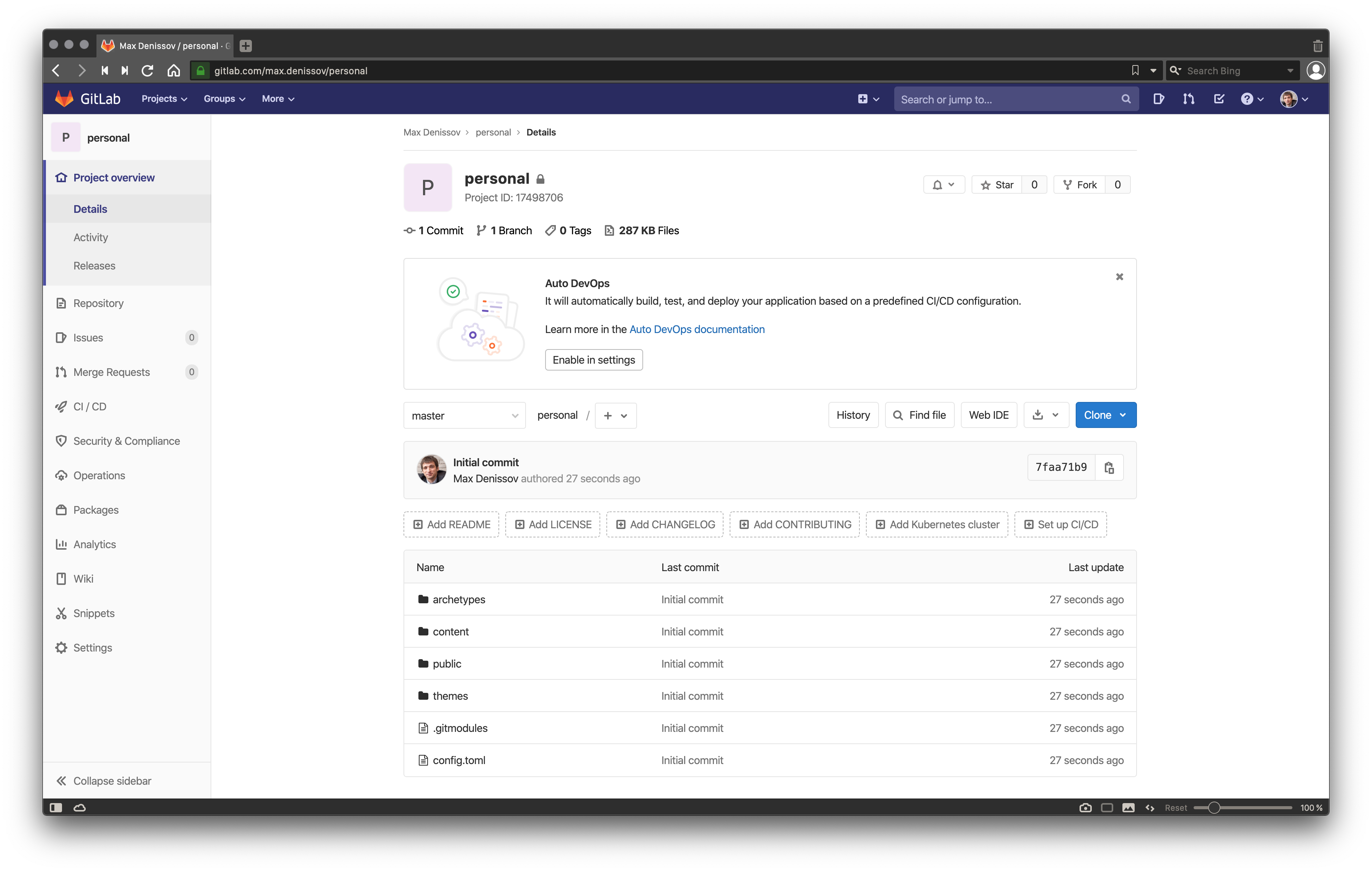
Your project now at GitLab.com.
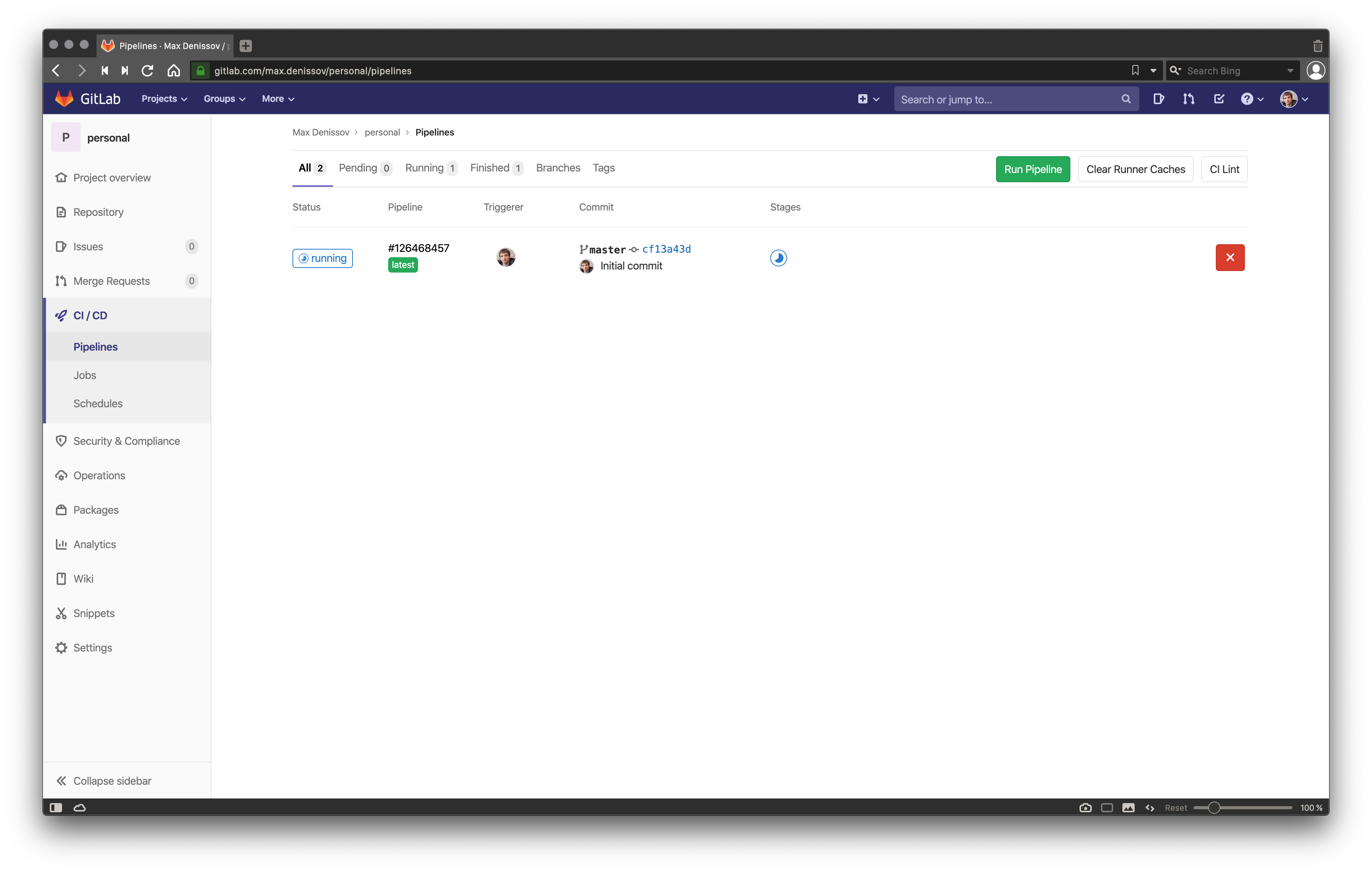
Open CI/CD -> Pipelines, and you will see execution pipeline of job of your project defined in .gitlab-ci.yml.
Open Settings -> Pages, and you will see information about you pubic page status.
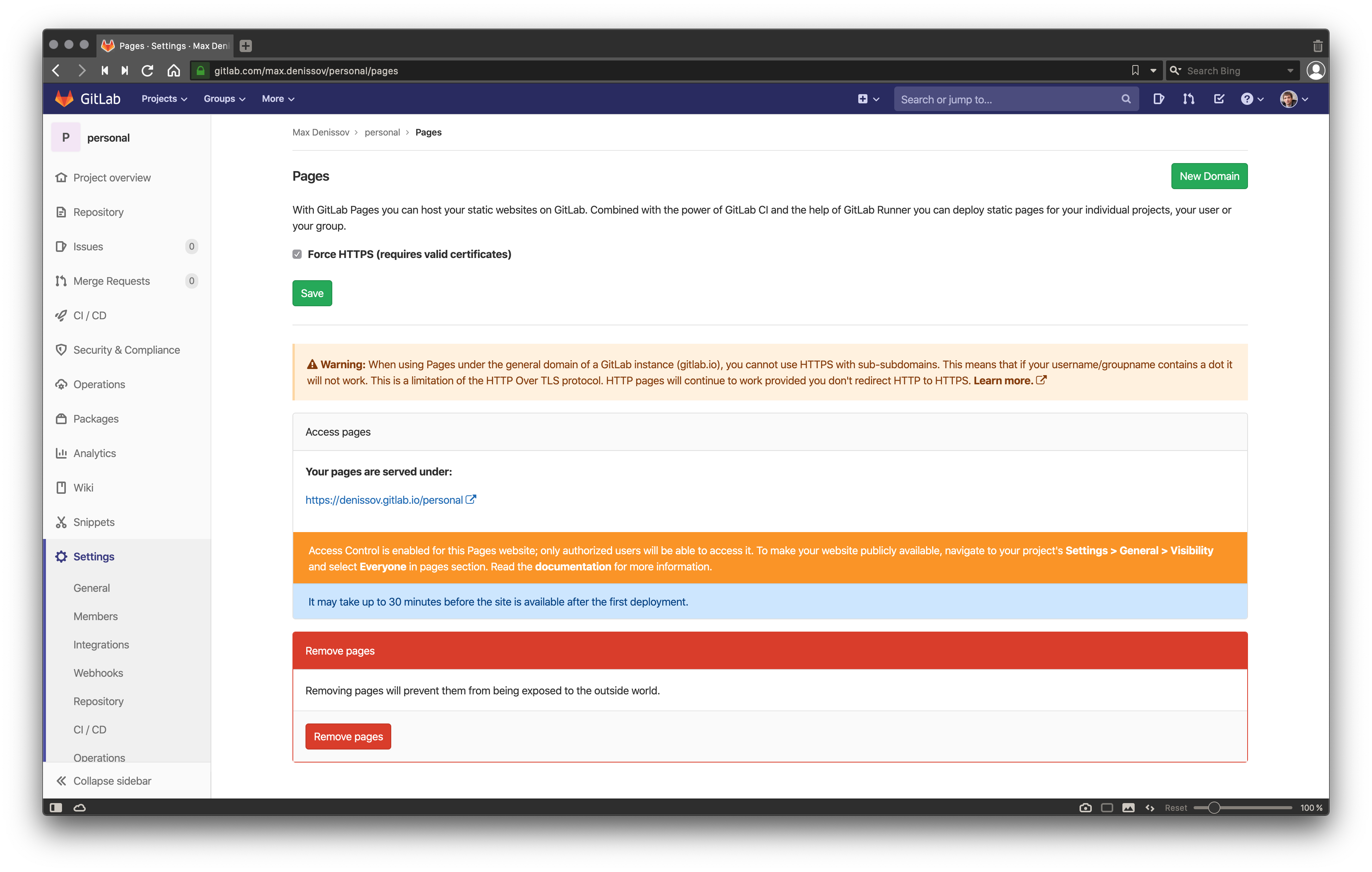
You can see URL of your page https://{your_account_name}.gitlab.io/personal
But you need make two additional steps:
- Rename your project to your account name Settings -> General -> Project name
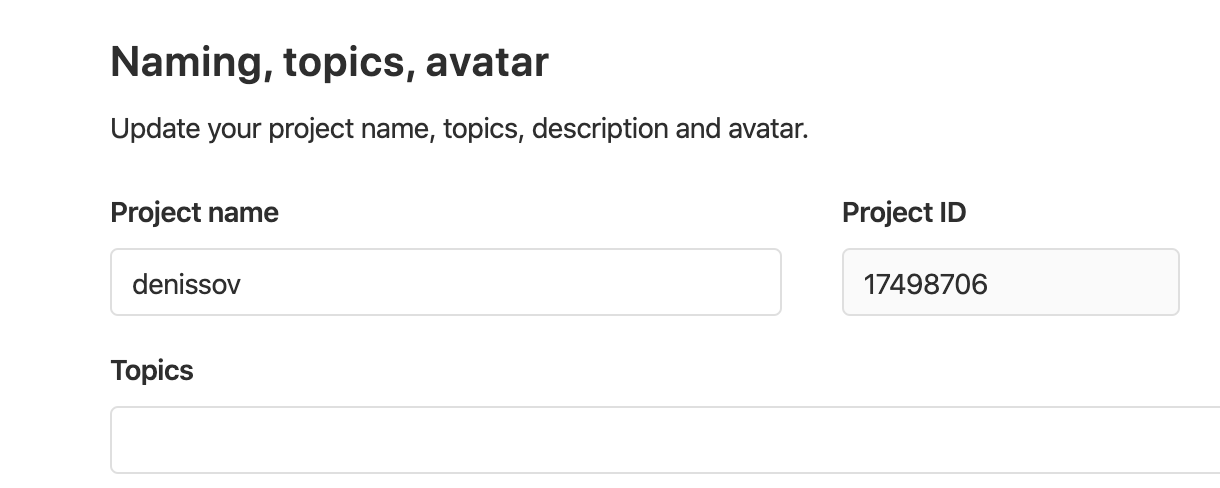
- Configure project pages access in the Settings -> General -> Visibility, project features, permissions,
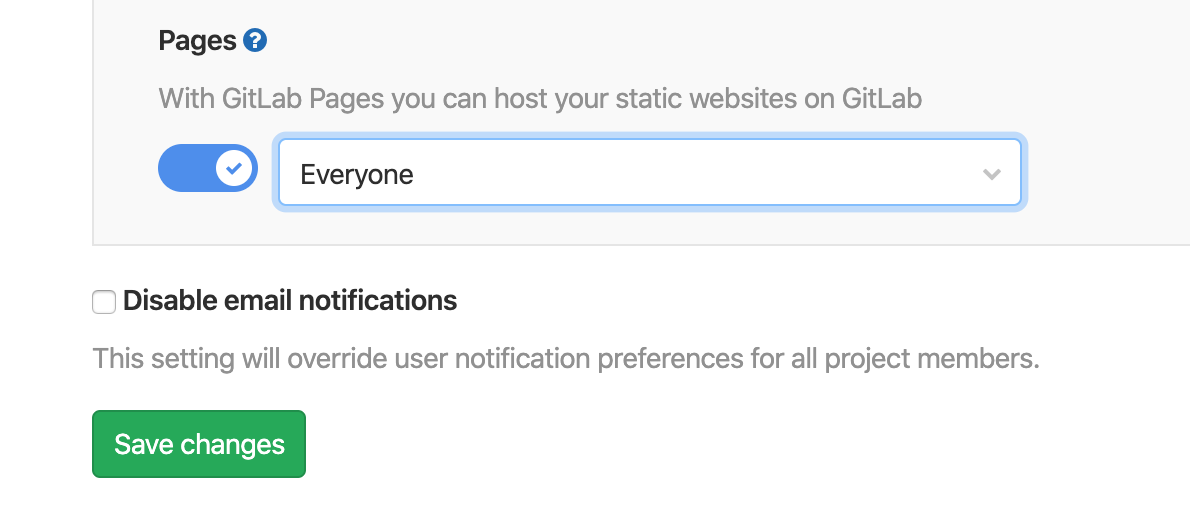
Check page access
After about 30 minutes you can check access to you page by url that you saw at Settings -> Pages, for example:
https://{your_account_name}.gitlab.io/personal